

Zoom Workplace
Zoom Workplace can be used for free; some features are only in the paid edition.
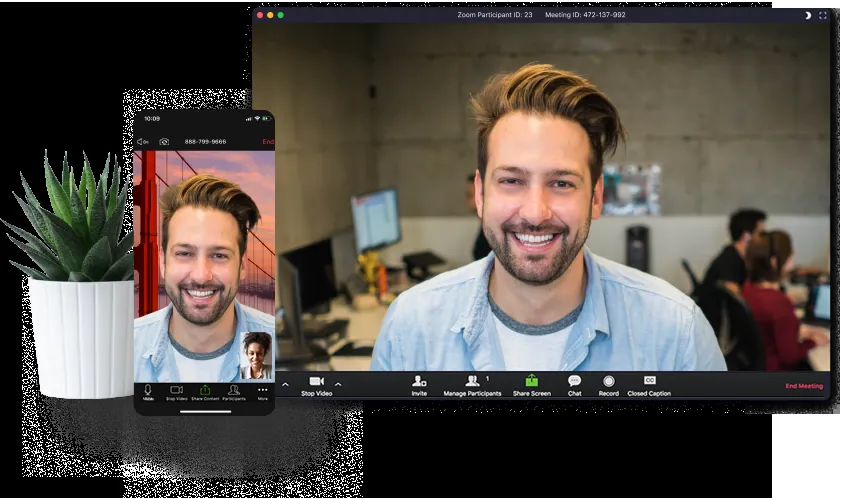
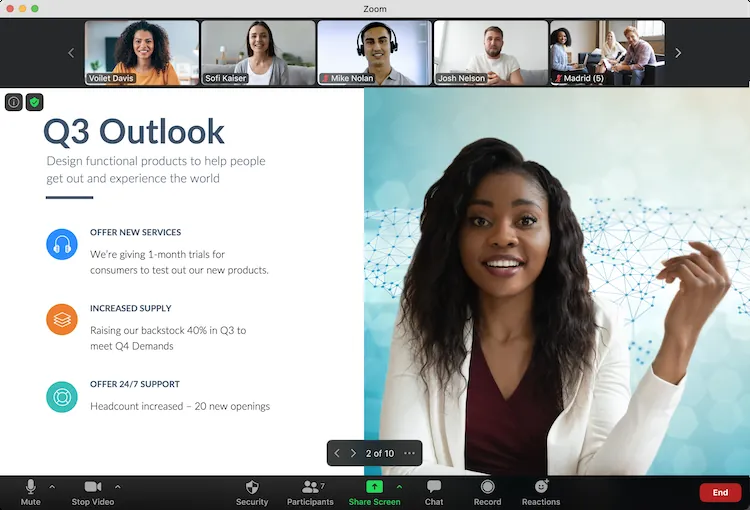
Zoom Workplace is a unified communication platform designed for video meetings, screen sharing, and team collaboration. It provides real-time audio and video conferencing alongside integrated chat tools across desktop and mobile devices.
zoom.us · Official website
- ✓ Official source (winget)
- ✓ File is identical to the one the publisher released (SHA256 matched)
- ✓ Last checked: Nov. 4, 2026
- This is not a virus scan. Check on VirusTotal
- Version
- 7.2.51704
- Release date
- Oct. 31, 2026
- License
- Proprietary
- Installer type
- msi
How do I use this?
Type Terminal in the Start menu and open it, paste the command (Ctrl+V or right-click) and press Enter. It uses winget, Windows' own package manager, to install the program from its official source.
winget install --id Zoom.Zoom -eSHA256 (file verification)
8e81e0d7dc401880c4cdfd14db8bed51308608b7aa67fa1e2ca31ccaa71cad93cdn.zoom.us · Official website
- ✓ Official source (Homebrew)
- ✓ File is identical to the one the publisher released (SHA256 matched)
- ✓ Last checked: Nov. 4, 2026
- This is not a virus scan. Check on VirusTotal
- Version
- 7.2.5.90525
- License
- Proprietary
- Installer type
- pkg
How do I use this?
This command needs Homebrew; if you don't have it, first run the install command from brew.sh. Then open Terminal (Applications > Utilities > Terminal), paste the command and press Enter.
brew install --cask zoomSHA256 (file verification)
4c26ebed8bd29ce258ac9dbe0f2b327fad0a0734246ea588339a2cc5fd10533eflathub.org · Official website
- ✓ Community package (Flathub)
- ✓ Last checked: Nov. 4, 2026
- Version
- 7.2.1.5760
- Release date
- Sept. 21, 2026
- License
- Proprietary
- Installer type
- flatpak
How do I use this?
Open a terminal, paste the command and press Enter. Flatpak and Flathub must be set up; Linux Mint has them by default, for other distributions see flathub.org/setup.
flatpak install flathub us.zoom.Zoomplay.google.com · Official website
- ✓ Official source (Google Play)
- ✓ Last checked: Nov. 4, 2026
- License
- Proprietary
Highlights
- High-definition video and audio conferencing
- Screen sharing for presentations and collaborative work
- Integrated Team Chat for direct messaging and group channels
- Webinars and digital meeting spaces
Who is it for?
Remote workers, distributed business teams, educators, and students holding virtual conferences, classes, and group discussions.
Good to know before installing
- The free tier limits group meetings to 40 minutes.
- Cloud recording storage and enterprise webinar hosting are restricted to paid tiers.
Screenshots
How to install
Windows
- Download the installer via our official download button, or execute 'winget install --id Zoom.Zoom -e' in Command Prompt.
- Run the downloaded installer and complete the setup wizard.
- Open Zoom Workplace from the Start menu or desktop shortcut.
macOS
- Download the official installer package from our page, or run 'brew install --cask zoom' in Terminal.
- Open the downloaded .pkg file and follow the onscreen setup steps.
- Launch Zoom Workplace from your Applications folder.
Linux
- Open your terminal or visit the Flathub page via our download link.
- Run the command: flatpak install flathub us.zoom.Zoom
- Launch Zoom Workplace from your application launcher.
Android
- Click the official download button on our page to open the Google Play Store.
- Tap Install to download and set up the app.
- Launch the application and sign in or join an existing meeting.
Alternatives
Frequently asked questions
Is Zoom Workplace free to use?
Yes, it uses a freemium model. A basic free plan is available for personal and small group meetings, while advanced features require a paid subscription.
Do I need a Zoom account to join a meeting?
No, you can join meetings as a participant via a shared link or Meeting ID without creating an account.
Does Zoom Workplace require a fast internet connection?
It adapts video quality dynamically, but a stable broadband or 4G/5G connection is recommended for optimal video and audio clarity.